> ## Documentation Index
> Fetch the complete documentation index at: https://beta-guide.daro.so/llms.txt
> Use this file to discover all available pages before exploring further.
# Banner & MREC Ads
> Implement banner and MREC ads with the DARO Flutter SDK.
## Banner & MREC Ad Formats
### Banner Ads
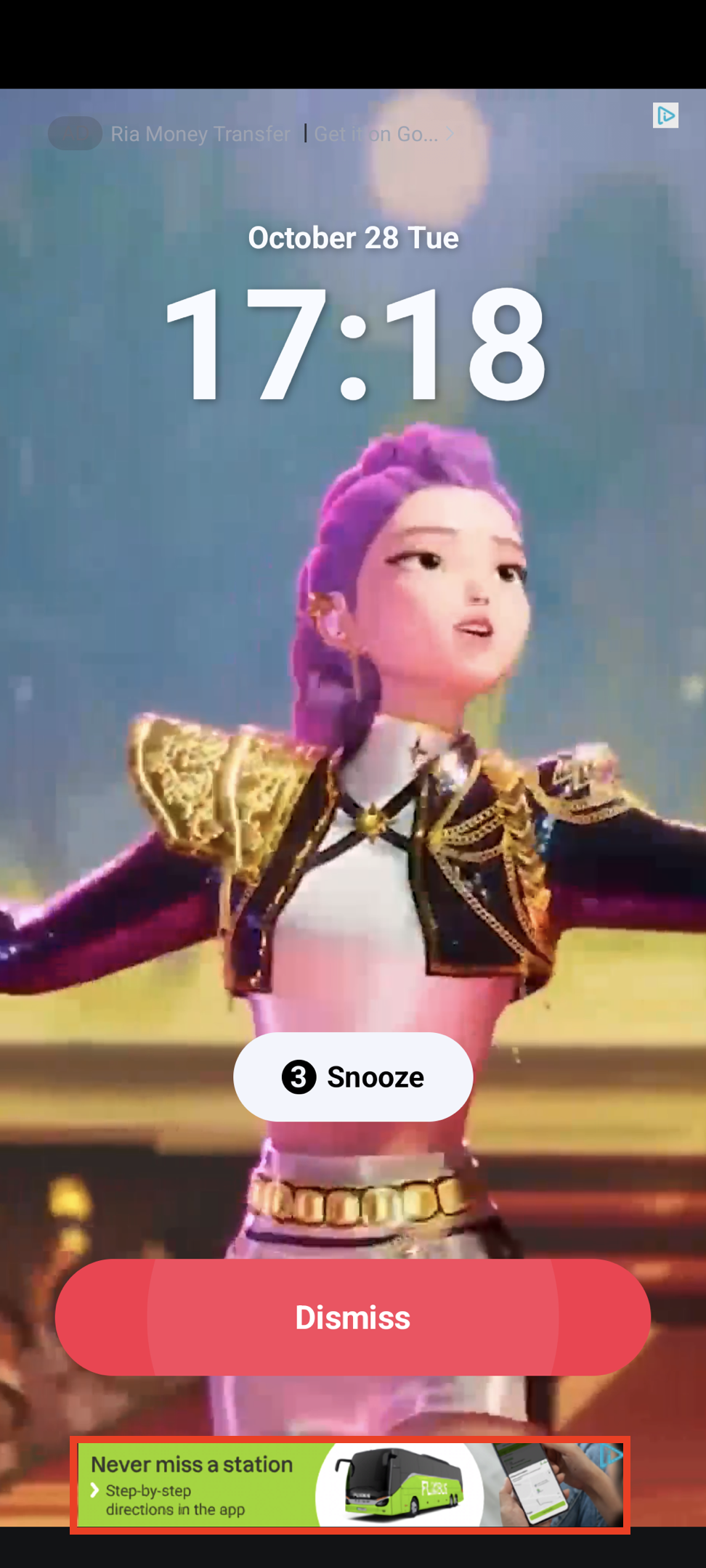
Rectangular ad format (320x50) that occupies part of your app layout. Supported by most ad demand sources.
 ### MREC Ads
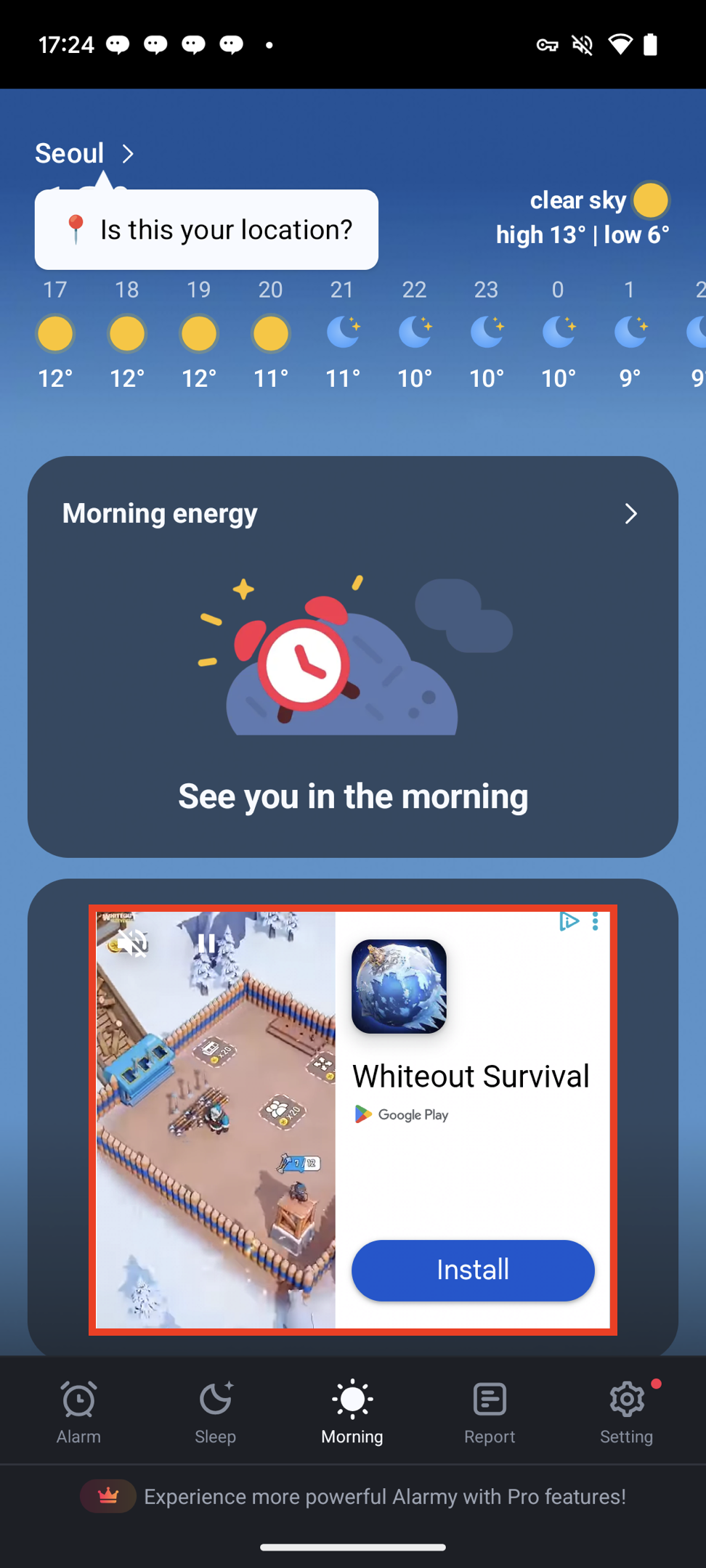
Medium Rectangle format (300x250) with similar characteristics to banner ads.
### MREC Ads
Medium Rectangle format (300x250) with similar characteristics to banner ads.
 ***
## Implementing Banner/MREC Ads
Banner ads follow a **Create Ad object → Load → Display widget → Dispose** pattern.
```dart theme={null}
import 'package:daro_flutter/daro_flutter.dart';
```
### 1. Create Ad Object
Create a `DaroBannerAd` object and configure callbacks.
```dart Banner (320x50) theme={null}
final bannerAd = DaroBannerAd(
adUnitId: '{YOUR_AD_UNIT_ID}',
size: DaroBannerSize.banner, // 320x50
onAdLoaded: (adInfo) {
print('Banner ad loaded: ${adInfo.adUnitId}');
setState(() {
_isAdLoaded = true;
});
},
onAdFailedToLoad: (error) {
print('Banner ad failed to load: ${error.message}');
bannerAd.dispose();
},
onAdClicked: (adInfo) {
print('Banner ad clicked');
},
onAdImpression: (adInfo) {
print('Banner ad impression');
},
);
```
```dart MREC (300x250) theme={null}
final mrecAd = DaroBannerAd(
adUnitId: '{YOUR_AD_UNIT_ID}',
size: DaroBannerSize.mrec, // 300x250
onAdLoaded: (adInfo) {
print('MREC ad loaded: ${adInfo.adUnitId}');
setState(() {
_isAdLoaded = true;
});
},
onAdFailedToLoad: (error) {
print('MREC ad failed to load: ${error.message}');
mrecAd.dispose();
},
onAdClicked: (adInfo) {
print('MREC ad clicked');
},
onAdImpression: (adInfo) {
print('MREC ad impression');
},
);
```
### 2. Load the Ad
```dart theme={null}
bannerAd.load();
```
### 3. Display the Widget
After the `onAdLoaded` callback fires, place the `DaroBannerAdWidget` in the widget tree.
```dart theme={null}
@override
Widget build(BuildContext context) {
return Column(
children: [
// ... other widgets
if (_isAdLoaded)
DaroBannerAdWidget(ad: bannerAd),
],
);
}
```
Placing `DaroBannerAdWidget` in the widget tree before calling `ad.load()` will throw a `FlutterError`. Always mount the widget after the `onAdLoaded` callback.
### 4. Dispose Resources
Call `dispose()` to clean up resources when leaving the page or when the ad is no longer needed.
```dart theme={null}
@override
void dispose() {
bannerAd.dispose();
super.dispose();
}
```
### Callback Reference
| Callback | Description |
| ------------------ | ----------------------------------------- |
| `onAdLoaded` | Called when the ad is successfully loaded |
| `onAdFailedToLoad` | Called when ad loading fails |
| `onAdClicked` | Called when the user clicks the ad |
| `onAdImpression` | Called when an ad impression is recorded |
***
## Implementing Banner/MREC Ads
Banner ads follow a **Create Ad object → Load → Display widget → Dispose** pattern.
```dart theme={null}
import 'package:daro_flutter/daro_flutter.dart';
```
### 1. Create Ad Object
Create a `DaroBannerAd` object and configure callbacks.
```dart Banner (320x50) theme={null}
final bannerAd = DaroBannerAd(
adUnitId: '{YOUR_AD_UNIT_ID}',
size: DaroBannerSize.banner, // 320x50
onAdLoaded: (adInfo) {
print('Banner ad loaded: ${adInfo.adUnitId}');
setState(() {
_isAdLoaded = true;
});
},
onAdFailedToLoad: (error) {
print('Banner ad failed to load: ${error.message}');
bannerAd.dispose();
},
onAdClicked: (adInfo) {
print('Banner ad clicked');
},
onAdImpression: (adInfo) {
print('Banner ad impression');
},
);
```
```dart MREC (300x250) theme={null}
final mrecAd = DaroBannerAd(
adUnitId: '{YOUR_AD_UNIT_ID}',
size: DaroBannerSize.mrec, // 300x250
onAdLoaded: (adInfo) {
print('MREC ad loaded: ${adInfo.adUnitId}');
setState(() {
_isAdLoaded = true;
});
},
onAdFailedToLoad: (error) {
print('MREC ad failed to load: ${error.message}');
mrecAd.dispose();
},
onAdClicked: (adInfo) {
print('MREC ad clicked');
},
onAdImpression: (adInfo) {
print('MREC ad impression');
},
);
```
### 2. Load the Ad
```dart theme={null}
bannerAd.load();
```
### 3. Display the Widget
After the `onAdLoaded` callback fires, place the `DaroBannerAdWidget` in the widget tree.
```dart theme={null}
@override
Widget build(BuildContext context) {
return Column(
children: [
// ... other widgets
if (_isAdLoaded)
DaroBannerAdWidget(ad: bannerAd),
],
);
}
```
Placing `DaroBannerAdWidget` in the widget tree before calling `ad.load()` will throw a `FlutterError`. Always mount the widget after the `onAdLoaded` callback.
### 4. Dispose Resources
Call `dispose()` to clean up resources when leaving the page or when the ad is no longer needed.
```dart theme={null}
@override
void dispose() {
bannerAd.dispose();
super.dispose();
}
```
### Callback Reference
| Callback | Description |
| ------------------ | ----------------------------------------- |
| `onAdLoaded` | Called when the ad is successfully loaded |
| `onAdFailedToLoad` | Called when ad loading fails |
| `onAdClicked` | Called when the user clicks the ad |
| `onAdImpression` | Called when an ad impression is recorded |