> ## Documentation Index
> Fetch the complete documentation index at: https://beta-guide.daro.so/llms.txt
> Use this file to discover all available pages before exploring further.
# 라이트 팝업 광고
## 라이트 팝업 광고 형태 소개
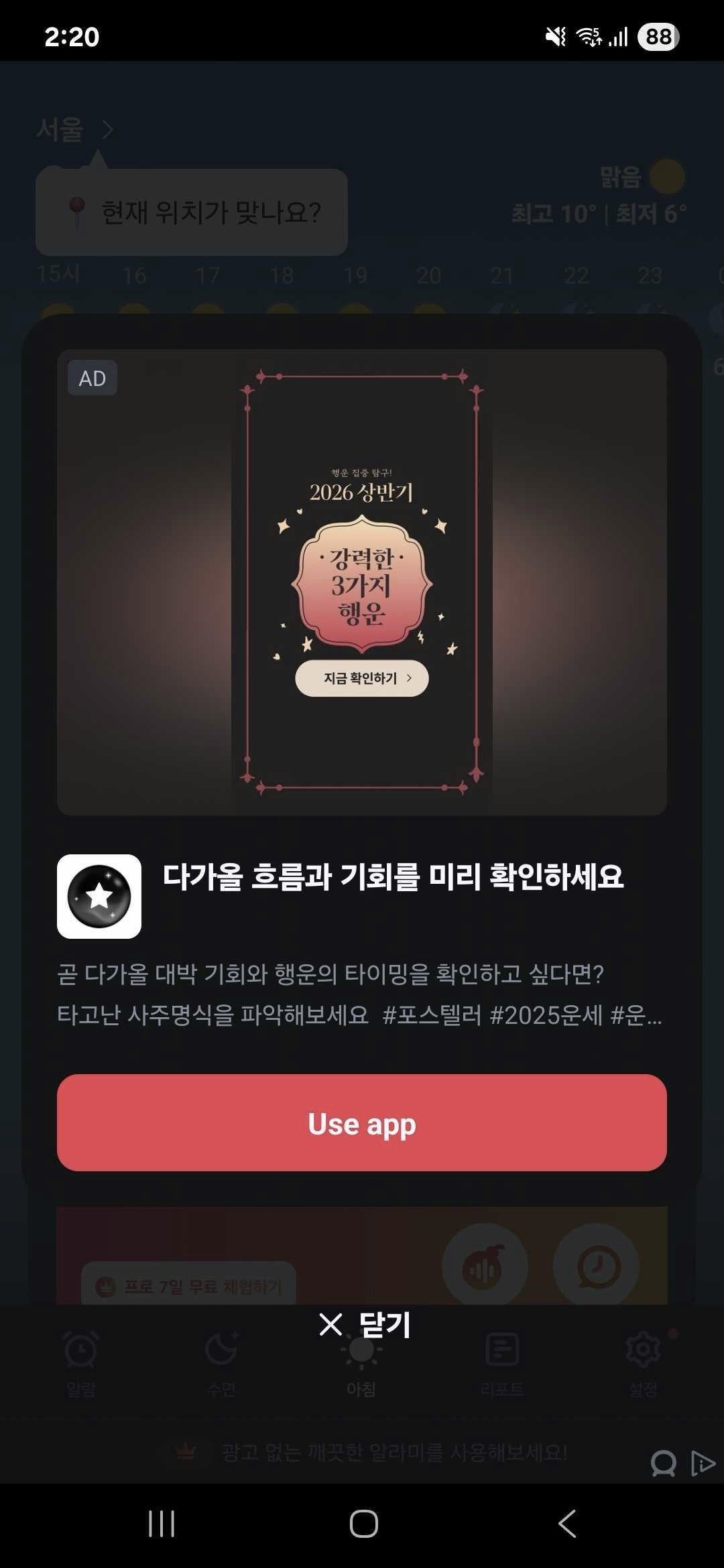
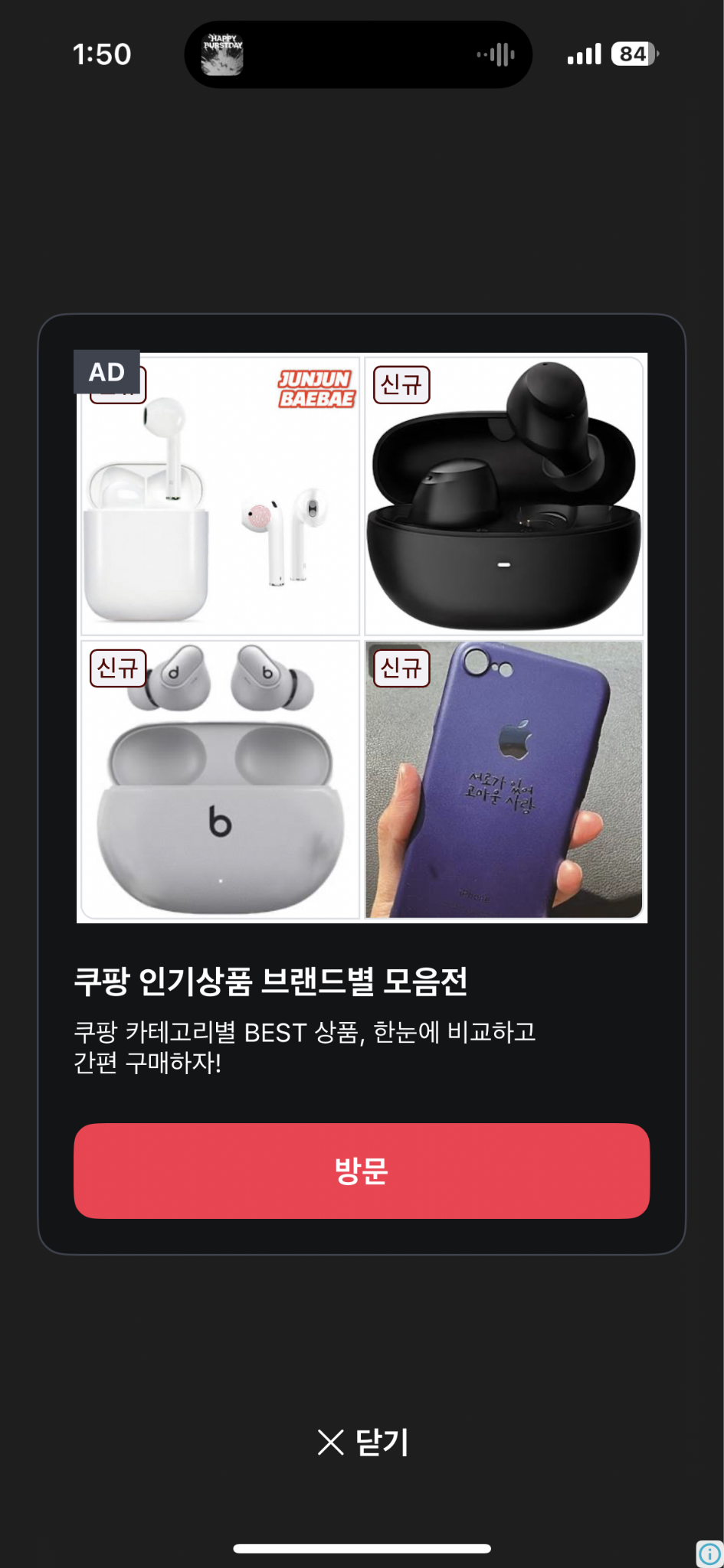
* 화면 위에 팝업 형태로 노출되는 광고 유형입니다.
* 8초 후에 자동으로 닫히게 됩니다. 인터스티셜이나, 리워드 비디오보다 ux를 해치지 않고 광고를 보여줄 수 있습니다.
* Android 라이트팝업 예시
 * iOS 라이트팝업 예시
 ***
## 패키지별 구현하기
`react-native-daro` 1.0.16 이상에서는 라이트 팝업 광고를 Hook API로 사용할 수 있습니다. 컴포넌트 내부에서 `useLightPopupAd`를 사용하면 로딩 상태와 광고 커스터마이징 옵션을 함께 관리할 수 있습니다.
기존의 정적 API(`LightPopupAd.loadAd` 등)는 deprecated입니다. 정적 리스너(`LightPopupAd.addAdLoadedEventListener` 등)는 Hook이나 인스턴스 API로 로드한 광고의 이벤트를 받지 못하니, 광고 로드를 새 API로 옮길 때 이벤트 리스너도 함께 옮겨주세요.
```javascript theme={null}
import { Button } from "react-native";
import { useLightPopupAd } from "react-native-daro";
function LightPopupAdButton({ adUnitId }) {
const { isLoaded, isLoading, load, show, isAdReady } = useLightPopupAd(
adUnitId,
{
onLoaded: (adInfo) => {
// 광고 로드 성공
},
onLoadFailed: (errorInfo) => {
// 광고 로드 실패
},
onHidden: (adInfo) => {
// 광고 닫힘
},
onImpressionRecorded: (adInfo) => {
// 광고 impression 기록
},
}
);
const handlePress = async () => {
if (await isAdReady()) {
show();
return;
}
load({
configuration: {
closeButtonText: "Close AD",
ctaButtonBackgroundColor: "#4CAF50",
},
});
};
return (
);
}
```
`react-native-daro-m`에서는 Static API로 라이트 팝업 광고를 구현합니다. `LightPopupAd.loadAd(unitId)`를 통해서 광고를 로드할 수 있습니다.
```javascript theme={null}
import { Platform } from "react-native";
import { LightPopupAd } from "react-native-daro-m";
```
```javascript theme={null}
const LIGHT_POPUP_AD_UNIT_ID = Platform.select({
ios: "YOUR_IOS_LIGHT_POPUP_AD_UNIT_ID",
android: "YOUR_ANDROID_LIGHT_POPUP_AD_UNIT_ID",
default: ''
});
LightPopupAd.loadAd(LIGHT_POPUP_AD_UNIT_ID);
```
***
### 광고 보여주기
`LightPopupAd.showAd(unitId)`를 통해서 로드한 광고를 보여줄 수 있습니다.
```javascript theme={null}
const isReady = await LightPopupAd.isAdReady(LIGHT_POPUP_AD_UNIT_ID);
if (isReady) {
LightPopupAd.showAd(LIGHT_POPUP_AD_UNIT_ID);
}
```
***
### 구현 예시
```javascript theme={null}
import { useEffect, useRef, useState } from "react";
import { StyleSheet } from "react-native";
// import문은 위의 탭 참조
import { AdDisplayFailedInfo, AdInfo, AdLoadFailedInfo, AdRevenueInfo, LightPopupAd } from "react-native-daro-m";
import { ThemedButton } from "../ThemedButton";
enum AdLoadState {
notLoaded = 'NOT_LOADED',
loading = 'LOADING',
loaded = 'LOADED',
}
type Props = {
adUnitId: string;
isInitialized: boolean;
log: (str: string) => void;
};
const MAX_EXPONENTIAL_RETRY_COUNT = 3;
const LightPopupAdExample = ({ adUnitId, isInitialized, log }: Props) => {
const [adLoadState, setAdLoadState] = useState(AdLoadState.notLoaded);
const retryAttempt = useRef(0);
useEffect(() => {
LightPopupAd.addAdLoadedEventListener((adInfo: AdInfo) => {
setAdLoadState(AdLoadState.loaded);
retryAttempt.current = 0;
log(`LightPopup ad loaded`);
});
LightPopupAd.addAdImpressionRecordedListener((adInfo: AdInfo) => {
log(`LightPopup ad revenue paid`);
});
LightPopupAd.addAdClickedEventListener((adInfo: AdInfo) => {
log(`LightPopup ad clicked`);
});
// Handle ad load failure
LightPopupAd.addAdLoadFailedEventListener((errorInfo: AdLoadFailedInfo) => {
setAdLoadState(AdLoadState.notLoaded);
if (retryAttempt.current > MAX_EXPONENTIAL_RETRY_COUNT) {
log('LightPopup ad failed to load with code ' + errorInfo.code);
return;
}
// LightPopup ad failed to load
// We recommend retrying with exponentially higher delays up to a maximum delay (in this case 64 seconds)
retryAttempt.current += 1;
const retryDelay = Math.pow(2, Math.min(MAX_EXPONENTIAL_RETRY_COUNT, retryAttempt.current));
log('LightPopup ad failed to load with code ' + errorInfo.code + ' - retrying in ' + retryDelay + 's');
setTimeout(() => {
setAdLoadState(AdLoadState.loading);
log('LightPopup ad retrying to load...');
LightPopupAd.loadAd(adUnitId);
}, retryDelay * 1000);
});
LightPopupAd.addAdDisplayedEventListener((adInfo: AdInfo) => {
log(`LightPopup ad displayed`);
});
LightPopupAd.addAdFailedToDisplayEventListener?.((adInfo: AdDisplayFailedInfo) => {
setAdLoadState(AdLoadState.notLoaded);
log(`LightPopup ad failed to display`);
});
LightPopupAd.addAdHiddenEventListener?.((adInfo: AdInfo) => {
setAdLoadState(AdLoadState.notLoaded);
log(`LightPopup ad hidden`);
});
LightPopupAd.setLightPopupAdConfiguration(adUnitId, {
backgroundColor: 'blue',
cardViewBackgroundColor: 'yellow',
adMarkLabelTextColor: 'red',
adMarkLabelBackgroundColor: '#FFD700',
closeButtonText: 'Close AD',
closeButtonTextColor: 'rgba(0, 255, 255, 0.42)',
titleTextColor: 'rgba(0, 128, 255, 0.42)',
bodyTextColor: '#333333',
ctaButtonTextColor: 'blue',
ctaButtonBackgroundColor: '#4CAF50',
});
}, [adUnitId]);
const getLightPopupButtonTitle = () => {
if (adLoadState === AdLoadState.notLoaded) {
return 'Load LightPopup';
} else if (adLoadState === AdLoadState.loading) {
return 'Loading...';
} else {
return 'Show LightPopup'; // adLoadState.loaded
}
};
return (
{
const isLightPopupReady = await LightPopupAd.isAdReady(adUnitId);
if (isLightPopupReady) {
LightPopupAd.showAd(adUnitId);
} else {
log('Loading LightPopup ad...');
setAdLoadState(AdLoadState.loading);
LightPopupAd.loadAd(adUnitId);
}
}} />
);
}
const styles = StyleSheet.create({
button: {
margin: 5,
},
});
export default LightPopupAdExample;
```
***
### 광고 커스터마이징
`LightPopupAd.setLightPopupAdConfiguration(adUnitId, options)`를 통해서 색상, 텍스트 등 UI 요소를 커스터마이징할 수 있습니다.
```javascript theme={null}
LightPopupAd.setLightPopupAdConfiguration(adUnitId, {
backgroundColor: 'blue', // 전체 배경색
cardViewBackgroundColor: 'yellow', // 카드 배경색
adMarkLabelTextColor: 'red', // 광고 마크 텍스트 색상
adMarkLabelBackgroundColor: '#FFD700', // 광고 마크 배경색
closeButtonText: 'Close AD', // 닫기 버튼 텍스트
closeButtonTextColor: 'rgba(0, 255, 255, 0.42)', // 닫기 버튼 텍스트 색상
titleTextColor: 'rgba(0, 128, 255, 0.42)', // 타이틀 색상
bodyTextColor: '#333333', // 본문 색상
ctaButtonTextColor: 'blue', // CTA 버튼 텍스트 색상
ctaButtonBackgroundColor: '#4CAF50', // CTA 버튼 배경색
});
```
***
## 패키지별 구현하기
`react-native-daro` 1.0.16 이상에서는 라이트 팝업 광고를 Hook API로 사용할 수 있습니다. 컴포넌트 내부에서 `useLightPopupAd`를 사용하면 로딩 상태와 광고 커스터마이징 옵션을 함께 관리할 수 있습니다.
기존의 정적 API(`LightPopupAd.loadAd` 등)는 deprecated입니다. 정적 리스너(`LightPopupAd.addAdLoadedEventListener` 등)는 Hook이나 인스턴스 API로 로드한 광고의 이벤트를 받지 못하니, 광고 로드를 새 API로 옮길 때 이벤트 리스너도 함께 옮겨주세요.
```javascript theme={null}
import { Button } from "react-native";
import { useLightPopupAd } from "react-native-daro";
function LightPopupAdButton({ adUnitId }) {
const { isLoaded, isLoading, load, show, isAdReady } = useLightPopupAd(
adUnitId,
{
onLoaded: (adInfo) => {
// 광고 로드 성공
},
onLoadFailed: (errorInfo) => {
// 광고 로드 실패
},
onHidden: (adInfo) => {
// 광고 닫힘
},
onImpressionRecorded: (adInfo) => {
// 광고 impression 기록
},
}
);
const handlePress = async () => {
if (await isAdReady()) {
show();
return;
}
load({
configuration: {
closeButtonText: "Close AD",
ctaButtonBackgroundColor: "#4CAF50",
},
});
};
return (
);
}
```
`react-native-daro-m`에서는 Static API로 라이트 팝업 광고를 구현합니다. `LightPopupAd.loadAd(unitId)`를 통해서 광고를 로드할 수 있습니다.
```javascript theme={null}
import { Platform } from "react-native";
import { LightPopupAd } from "react-native-daro-m";
```
```javascript theme={null}
const LIGHT_POPUP_AD_UNIT_ID = Platform.select({
ios: "YOUR_IOS_LIGHT_POPUP_AD_UNIT_ID",
android: "YOUR_ANDROID_LIGHT_POPUP_AD_UNIT_ID",
default: ''
});
LightPopupAd.loadAd(LIGHT_POPUP_AD_UNIT_ID);
```
***
### 광고 보여주기
`LightPopupAd.showAd(unitId)`를 통해서 로드한 광고를 보여줄 수 있습니다.
```javascript theme={null}
const isReady = await LightPopupAd.isAdReady(LIGHT_POPUP_AD_UNIT_ID);
if (isReady) {
LightPopupAd.showAd(LIGHT_POPUP_AD_UNIT_ID);
}
```
***
### 구현 예시
```javascript theme={null}
import { useEffect, useRef, useState } from "react";
import { StyleSheet } from "react-native";
// import문은 위의 탭 참조
import { AdDisplayFailedInfo, AdInfo, AdLoadFailedInfo, AdRevenueInfo, LightPopupAd } from "react-native-daro-m";
import { ThemedButton } from "../ThemedButton";
enum AdLoadState {
notLoaded = 'NOT_LOADED',
loading = 'LOADING',
loaded = 'LOADED',
}
type Props = {
adUnitId: string;
isInitialized: boolean;
log: (str: string) => void;
};
const MAX_EXPONENTIAL_RETRY_COUNT = 3;
const LightPopupAdExample = ({ adUnitId, isInitialized, log }: Props) => {
const [adLoadState, setAdLoadState] = useState(AdLoadState.notLoaded);
const retryAttempt = useRef(0);
useEffect(() => {
LightPopupAd.addAdLoadedEventListener((adInfo: AdInfo) => {
setAdLoadState(AdLoadState.loaded);
retryAttempt.current = 0;
log(`LightPopup ad loaded`);
});
LightPopupAd.addAdImpressionRecordedListener((adInfo: AdInfo) => {
log(`LightPopup ad revenue paid`);
});
LightPopupAd.addAdClickedEventListener((adInfo: AdInfo) => {
log(`LightPopup ad clicked`);
});
// Handle ad load failure
LightPopupAd.addAdLoadFailedEventListener((errorInfo: AdLoadFailedInfo) => {
setAdLoadState(AdLoadState.notLoaded);
if (retryAttempt.current > MAX_EXPONENTIAL_RETRY_COUNT) {
log('LightPopup ad failed to load with code ' + errorInfo.code);
return;
}
// LightPopup ad failed to load
// We recommend retrying with exponentially higher delays up to a maximum delay (in this case 64 seconds)
retryAttempt.current += 1;
const retryDelay = Math.pow(2, Math.min(MAX_EXPONENTIAL_RETRY_COUNT, retryAttempt.current));
log('LightPopup ad failed to load with code ' + errorInfo.code + ' - retrying in ' + retryDelay + 's');
setTimeout(() => {
setAdLoadState(AdLoadState.loading);
log('LightPopup ad retrying to load...');
LightPopupAd.loadAd(adUnitId);
}, retryDelay * 1000);
});
LightPopupAd.addAdDisplayedEventListener((adInfo: AdInfo) => {
log(`LightPopup ad displayed`);
});
LightPopupAd.addAdFailedToDisplayEventListener?.((adInfo: AdDisplayFailedInfo) => {
setAdLoadState(AdLoadState.notLoaded);
log(`LightPopup ad failed to display`);
});
LightPopupAd.addAdHiddenEventListener?.((adInfo: AdInfo) => {
setAdLoadState(AdLoadState.notLoaded);
log(`LightPopup ad hidden`);
});
LightPopupAd.setLightPopupAdConfiguration(adUnitId, {
backgroundColor: 'blue',
cardViewBackgroundColor: 'yellow',
adMarkLabelTextColor: 'red',
adMarkLabelBackgroundColor: '#FFD700',
closeButtonText: 'Close AD',
closeButtonTextColor: 'rgba(0, 255, 255, 0.42)',
titleTextColor: 'rgba(0, 128, 255, 0.42)',
bodyTextColor: '#333333',
ctaButtonTextColor: 'blue',
ctaButtonBackgroundColor: '#4CAF50',
});
}, [adUnitId]);
const getLightPopupButtonTitle = () => {
if (adLoadState === AdLoadState.notLoaded) {
return 'Load LightPopup';
} else if (adLoadState === AdLoadState.loading) {
return 'Loading...';
} else {
return 'Show LightPopup'; // adLoadState.loaded
}
};
return (
{
const isLightPopupReady = await LightPopupAd.isAdReady(adUnitId);
if (isLightPopupReady) {
LightPopupAd.showAd(adUnitId);
} else {
log('Loading LightPopup ad...');
setAdLoadState(AdLoadState.loading);
LightPopupAd.loadAd(adUnitId);
}
}} />
);
}
const styles = StyleSheet.create({
button: {
margin: 5,
},
});
export default LightPopupAdExample;
```
***
### 광고 커스터마이징
`LightPopupAd.setLightPopupAdConfiguration(adUnitId, options)`를 통해서 색상, 텍스트 등 UI 요소를 커스터마이징할 수 있습니다.
```javascript theme={null}
LightPopupAd.setLightPopupAdConfiguration(adUnitId, {
backgroundColor: 'blue', // 전체 배경색
cardViewBackgroundColor: 'yellow', // 카드 배경색
adMarkLabelTextColor: 'red', // 광고 마크 텍스트 색상
adMarkLabelBackgroundColor: '#FFD700', // 광고 마크 배경색
closeButtonText: 'Close AD', // 닫기 버튼 텍스트
closeButtonTextColor: 'rgba(0, 255, 255, 0.42)', // 닫기 버튼 텍스트 색상
titleTextColor: 'rgba(0, 128, 255, 0.42)', // 타이틀 색상
bodyTextColor: '#333333', // 본문 색상
ctaButtonTextColor: 'blue', // CTA 버튼 텍스트 색상
ctaButtonBackgroundColor: '#4CAF50', // CTA 버튼 배경색
});
```