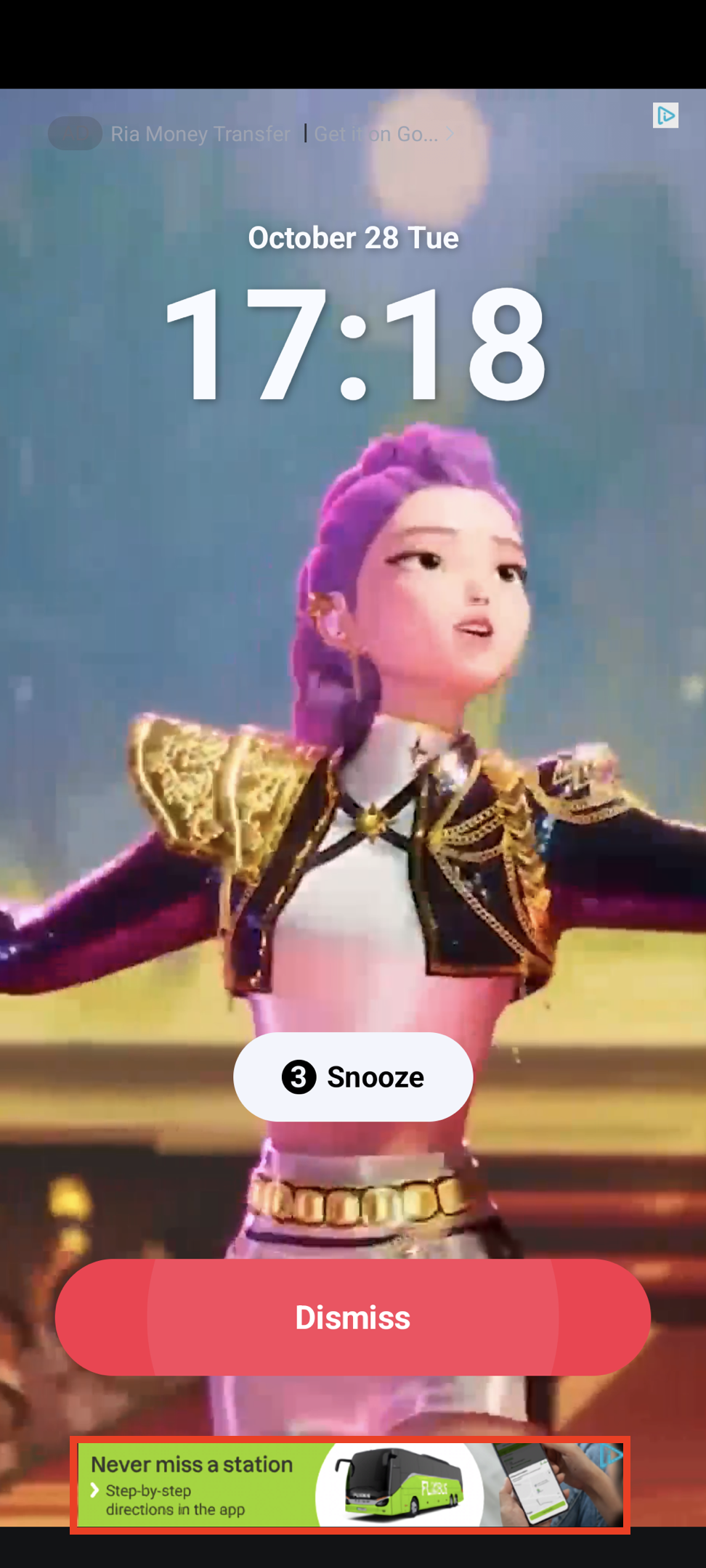
Rectangular ad format (320x50) that occupies part of your app layout. Supported by most ad networks. Banner Example Pn

MREC Ads

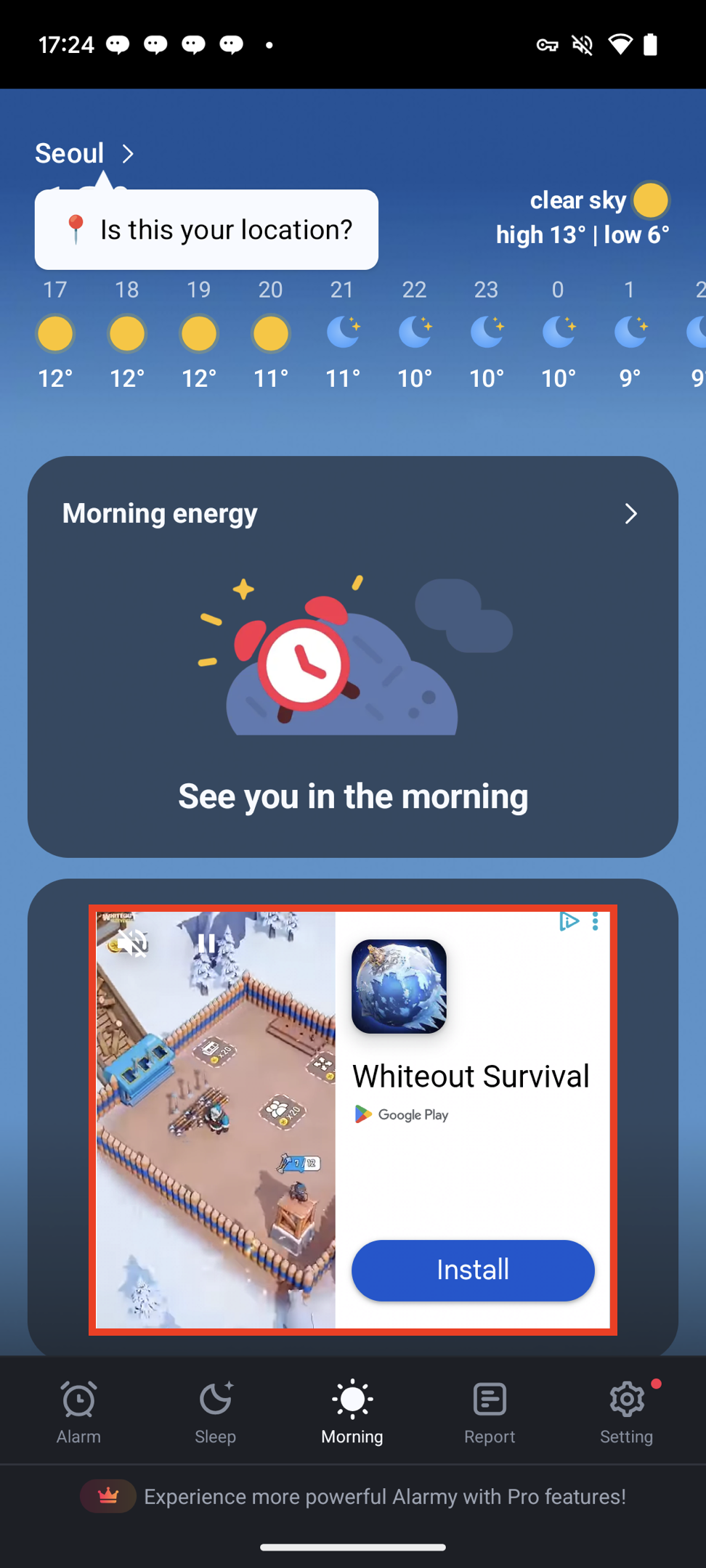
Medium Rectangle format (300x250) with similar characteristics to banner ads. Mrec Example Pn

Implementing Banner/MREC Ads

Banner ads follow a Create Ad object → Load → Display widget → Dispose pattern.
import 'package:daro_flutter/daro_flutter.dart';

1. Create Ad Object

Create a DaroBannerAd object and configure callbacks.
final bannerAd = DaroBannerAd(
  adUnitId: '{YOUR_AD_UNIT_ID}',
  size: DaroBannerSize.banner, // 320x50
  onAdLoaded: (adInfo) {
    print('Banner ad loaded: ${adInfo.adUnitId}');
    setState(() {
      _isAdLoaded = true;
    });
  },
  onAdFailedToLoad: (error) {
    print('Banner ad failed to load: ${error.message}');
    bannerAd.dispose();
  },
  onAdClicked: (adInfo) {
    print('Banner ad clicked');
  },
  onAdImpression: (adInfo) {
    print('Banner ad impression');
  },
);

2. Load the Ad

bannerAd.load();

3. Display the Widget

After the onAdLoaded callback fires, place the DaroBannerAdWidget in the widget tree.
@override
Widget build(BuildContext context) {
  return Column(
    children: [
      // ... other widgets
      if (_isAdLoaded)
        DaroBannerAdWidget(ad: bannerAd),
    ],
  );
}
Placing DaroBannerAdWidget in the widget tree before calling ad.load() will throw a FlutterError. Always mount the widget after the onAdLoaded callback.


4. Dispose Resources

Call dispose() to clean up resources when leaving the page or when the ad is no longer needed.
@override
void dispose() {
  bannerAd.dispose();
  super.dispose();
}

Callback Reference

CallbackDescription
onAdLoadedCalled when the ad is successfully loaded
onAdFailedToLoadCalled when ad loading fails
onAdClickedCalled when the user clicks the ad
onAdImpressionCalled when an ad impression is recorded